How to Install Codex CLI and Use It in a Real Project
A practical setup path from npm install to your first AGENTS.md-driven task
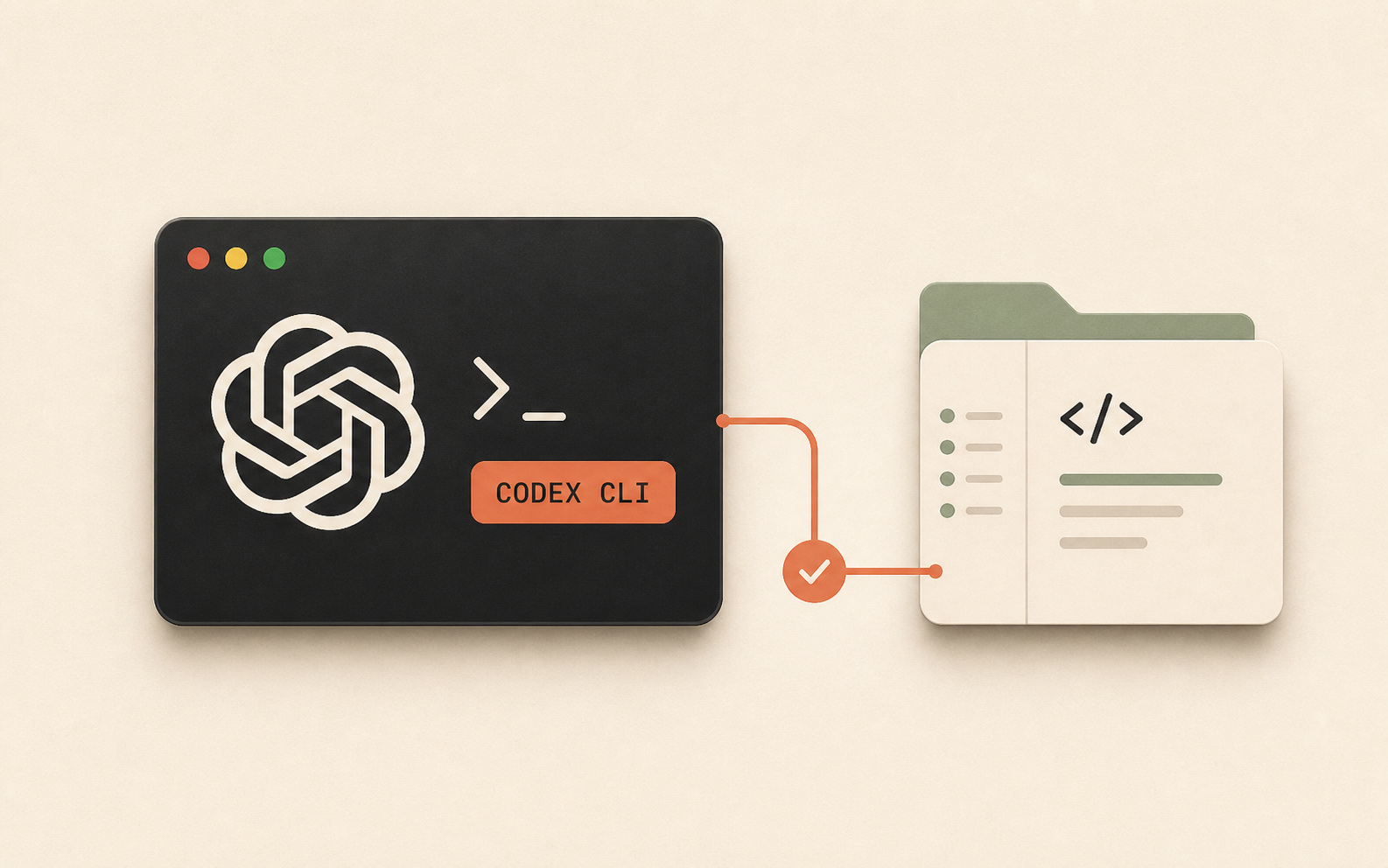
Quick answer: to install Codex CLI on macOS or Linux, run curl -fsSL https://chatgpt.com/codex/install.sh | sh. On Windows PowerShell, run powershell -ExecutionPolicy ByPass -c "irm https://chatgpt.com/codex/install.ps1 | iex". You can also use npm install -g @openai/codex or brew install --cask codex. Then open a project folder, run codex, and choose Sign in with ChatGPT. This guide covers installing Codex CLI, choosing an authentication method, setting sandbox and approval modes deliberately, and writing the AGENTS.md file that makes it useful on a real codebase. Install commands checked against OpenAI's Codex README on October 26, 2026.
Where Codex CLI fits
Codex CLI is the terminal version of OpenAI's coding agent. It runs locally, reads your codebase, edits files, and executes shell commands inside an OS-level sandbox. It is a separate surface from the Codex IDE extension (for VS Code, Cursor, or Windsurf), the Codex desktop app, and Codex Web at chatgpt.com/codex, which runs tasks in the cloud instead of on your machine.
If you already work inside an editor most of the day, the IDE extension may fit better. Codex CLI is the right pick when you want a standalone agent you can point at a repo from the terminal, script into CI, or run on a headless machine.
Sources: Codex CLI on npm
Install Codex CLI
Confirm you have Node.js 18 or later, then install Codex CLI globally. macOS users can use Homebrew instead of npm if they prefer not to manage global npm packages.
On macOS or Linux, use OpenAI's standalone installer. Run the same command later to update:
On Windows, run the native installer from PowerShell:
Or install with npm:
Or, on macOS, install with Homebrew. Codex is now a cask:
Verify the install worked:
- macOS, Linux and Windows all have an official one-line installer
- On Windows you can run Codex natively or inside WSL2; OpenAI documents a separate Windows sandbox setup
Sources: Warp: Set up Codex CLI
Authenticate and pick a model
Run codex and follow the prompt to sign in with your ChatGPT account, which is the simplest path if you're already on a paid plan. This gives you access to the current default model at no extra cost beyond your subscription.
If you'd rather bill through the API instead, run codex login --with-api-key and provide a key from the OpenAI Platform. API access tends to lag a step behind ChatGPT auth for brand-new models, and it's billed per token rather than through a flat subscription, so it usually makes more sense for CI or automated jobs than for daily interactive use.
Don't store a raw API key in a shell profile or commit it to a repository. Keep it in your terminal's secret manager or the CI provider's secret store instead.
Sources: SmartScope: OpenAI Codex CLI Guide
Set your sandbox and approval mode before you do anything else
Codex CLI's behavior is governed by two settings: sandbox_mode, which controls what it can touch on disk and on the network, and approval_policy, which controls how often it asks before acting. The sane starting point for local work is workspace-write with on-request approval: Codex can edit files inside your project without asking every time, but it checks in before running commands outside that scope.
Network access from inside workspace-write mode is off by default. If a task needs to install a package or call an API, you opt into that explicitly rather than Codex reaching out silently.
Avoid full bypass flags like --dangerously-bypass-approvals-and-sandbox (sometimes shortened to --yolo in community writeups) on a normal checkout. Reserve that combination for isolated environments, such as a disposable git worktree or a CI container, where a bad autonomous edit costs you nothing more than deleting the worktree.
Give Codex an AGENTS.md
AGENTS.md is Codex's equivalent of Claude Code's CLAUDE.md: a persistent brief it reads at the start of every session. Without one, Codex re-derives your stack, conventions, and constraints from scratch on every task, which wastes time and produces less consistent output.
Run /init inside your repo and Codex will draft one for you. Review it and trim it down. Keep the first version short and specific: the stack, where the important code lives, the commands that must pass before a change counts as done, and anything it should never touch.
Generate a starting point:
A minimal AGENTS.md is enough to start. Something like:
- Grow the file as Codex repeats the same mistake twice, not before
- Keep a matching CLAUDE.md convention if your team also runs Claude Code, so the two files don't drift apart
A prompt for your first real task
Point Codex at something small and reversible for the first real run: a missing test, a docstring pass, or a narrowly scoped bug fix. Describe the outcome in plain language rather than a rigid command syntax, then let Codex propose a plan before it touches anything.
Before you trust the diff
Codex working inside a sandbox is not the same as Codex being right. Run this check before merging anything it produced.
Where this breaks down
Most Codex CLI problems fall into a handful of categories. Approval prompts that won't stop usually mean your approval_policy is stricter than the task needs; try on-request instead of untrusted for routine work. Network access denied errors are almost always the sandbox working as designed rather than a bug; opt into network access explicitly in config if a task genuinely needs it. Sandbox errors on WSL or macOS are frequently a stale or misconfigured sandbox binary rather than a permissions issue with your project. Authentication loops are most often fixed by running codex logout followed by a fresh login.
Hitting your usage limits?
The Token Saver Kit, which AETW makes and sells, is a 10-minute setup that cuts wasted tokens in Claude Code and Codex: lean memory files, settings that block wasteful reads, hooks, cheap subagents and a Codex config. See what's inside the kit.
Or start with our free guides on saving tokens in Claude Code and fixing Codex usage limits.
Sources
Founder and Editor
Brian Weerasinghe is the founder and editor of AI Eating The World, where he covers artificial intelligence, tech companies, layoffs, startups, and the future of work. His reporting focuses on how AI is transforming businesses, products, and the global workforce. He writes about major developments across the AI industry, from enterprise adoption and funding trends to the real-world impact of automation and emerging technologies.